# MadnessBot User Manual
Your experience. A little Madness. A clearer next step.
**Browser edition · Updated September 27, 2026**
MadnessBot is an AI automotive assistant for technicians, repair shops, and hands-on vehicle owners. Type a question, talk with Madness Live, or show a photo or short video. Keep the evidence, follow-up questions, and written answers together in a repair conversation.
This manual covers the current phone and computer **browser application**. The website's promotional previews lead to the real account sign-in panel; they do not start guest AI sessions. Native iPhone and Android applications may have different controls.
**Using the staging app?** It has separate test accounts and test billing. Your regular production login may not work there, and public registration or account emails may be restricted. Use the staging account provided by the MadnessBot team. The instructions below describe the browser interface; your account's actual availability and allowance appear in **Account & Settings**.
## 1. Your first five minutes
Start with a real question you can describe clearly. You do not need a special command or a perfectly written prompt.
1. **Sign in.** Use your email and password, or Google when offered for your environment.
2. **Begin in Chat.** Enter the vehicle, the symptom, and what you already know. Tap the upward **Send** arrow, or press Enter on a keyboard.
3. **Read the answer.** Look for the next useful check and any missing information. Ask for clarification before proceeding if the instructions or required equipment are unclear.
4. **Add evidence.** Choose **Video** or use the **+** attachment button to take a photo, record a clip, or select an existing file.
5. **Continue the same conversation.** Report what you found. Choose **Live → Go Live** if you would rather talk through the next part.
Try this first question, replacing the brackets with your own details:
> I'm working on a [year, make, model, engine] with [mileage]. The problem is [symptom]. It happens when [conditions]. I have [codes or measurements], and I already checked [results]. What information do you need, and what should I verify first?
You can also start with a parts question, a tool question, a maintenance plan, or a photo of something you want help identifying. A useful first answer is the beginning of a discussion—not a reason to replace a part without confirming the fault.
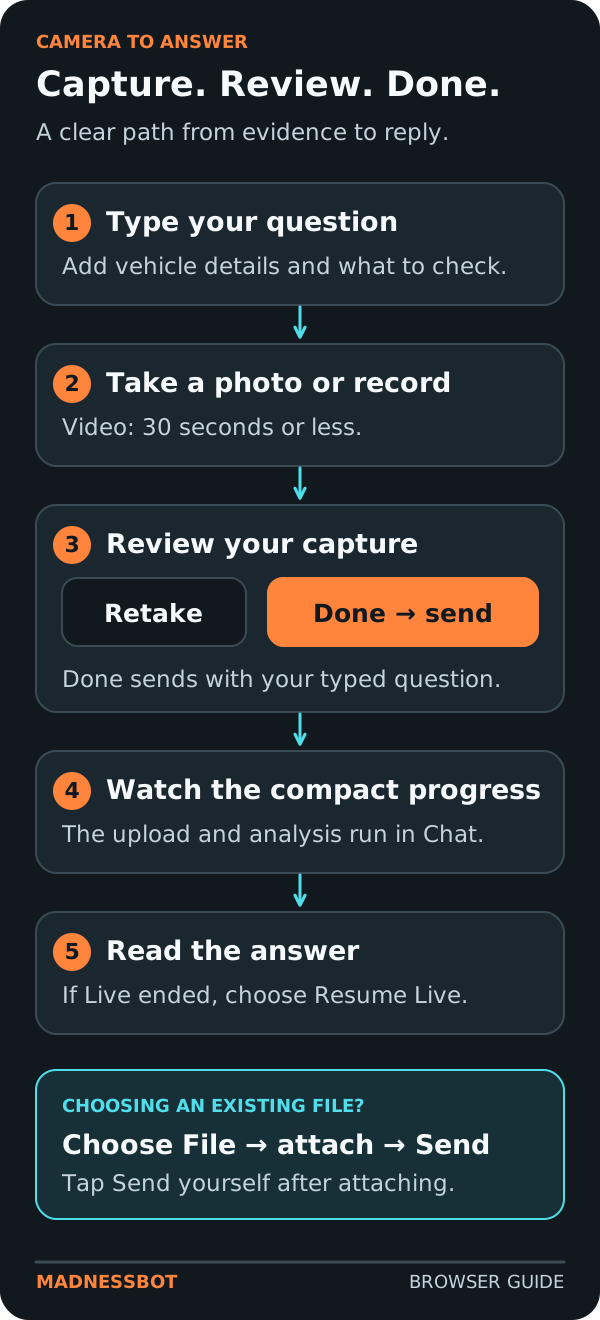
**Fast camera workflow:** write any explanation before capturing → take a photo or record a clip → review it → tap **Done**. Done sends the capture and your typed explanation together. You do **not** need to press Send afterward.
## 2. Find your way around
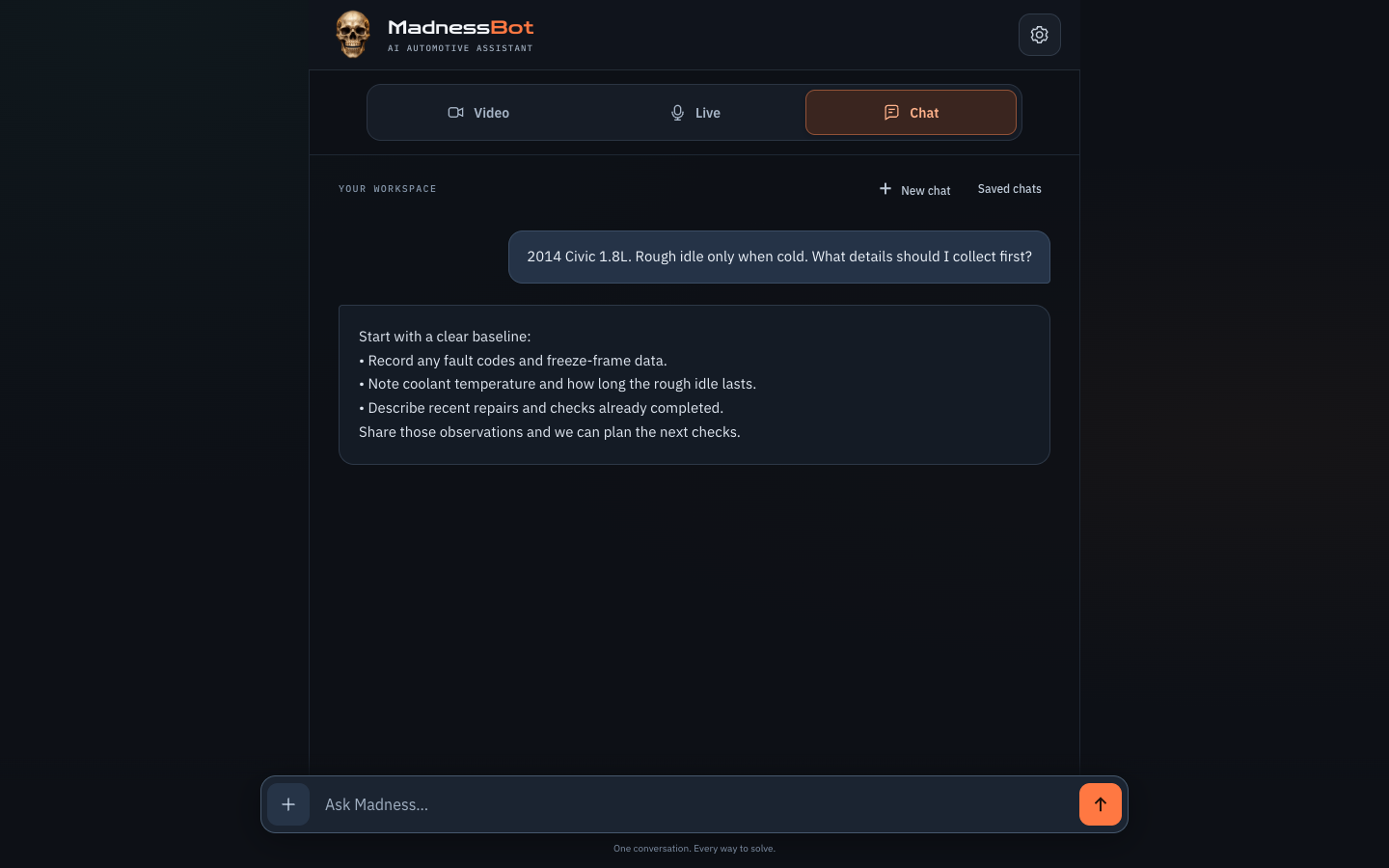
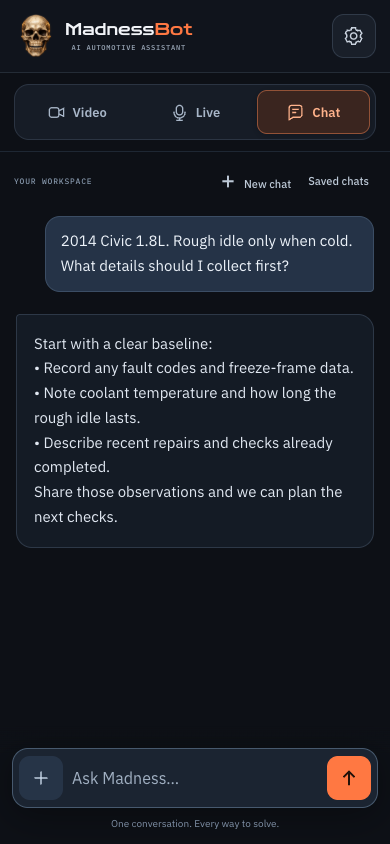
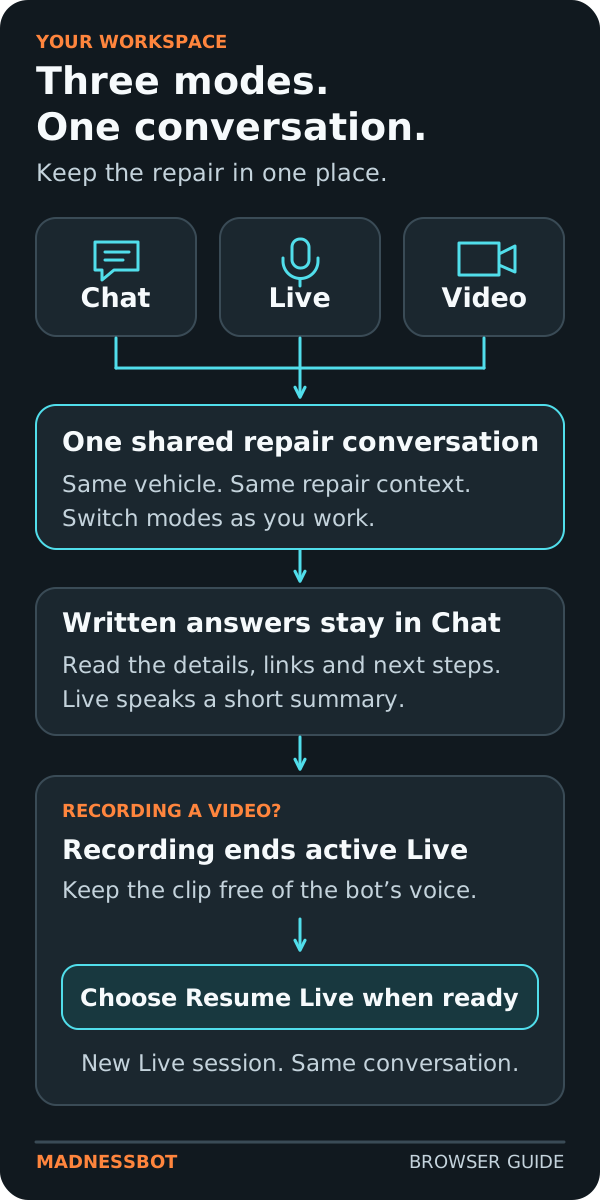
The same workspace, with room to read.The current desktop interface keeps mode controls above the conversation, with the composer ready below. This screenshot uses an example conversation.Your workspace on a phone.Start in Chat. The three mode controls stay available, and the gear opens the separate Account & Settings screen. Conversation and account data shown here are examples.Three modes. One repair conversation.Type a question, talk it through, or add visual evidence. Keep the vehicle and written answers together as you switch. Recording a video ends an active Live session; Resume Live reconnects when you are ready.
The workspace keeps the main screen focused on the conversation. Account and billing details live behind the small gear.
| Control | What it does |
| --- | --- |
| **Chat** | Returns to the conversation and typing area. |
| **Live** | Shows Madness Live and its voice-session controls. Selecting the tab alone does not start the microphone. |
| **Video** | Shows the photo and video choices. Selecting the tab alone does not start the camera. |
| **+** beside the message | Opens attachment choices: Take photo, Choose photo, Record video, Choose video, and Choose file. |
| **Send** arrow | Submits your typed message and any selected file. |
| **New Chat** | Starts a fresh conversation with a short welcome from Madness. |
| **Saved Chats** | Opens the recent conversation list. |
| **Gear** | Opens Account & Settings: account, plan, usage, billing controls, and Help. |
| **Back** in settings | Returns to the workspace and your reading position. |
Chat, Live, and Video are ways to work within the **same conversation**. Switching tabs preserves the draft and conversation. When you choose a mode, the app brings the current conversation's bottom and the relevant tool into view. The camera and Live panels appear after the latest messages, rather than making you return to the beginning of a long chat.
On a phone, the message composer stays near the bottom. During Live, a small floating skull control may keep **Mute mic**, **End Live**, and **Enable sound** within reach while you read. Tap it to reveal its controls if they are collapsed.
**Changing mode does not necessarily end Live.** Use **End Live** when you want the voice session disconnected. Switching to Chat is not a substitute for ending a running voice session.
## 3. Sign in and manage access
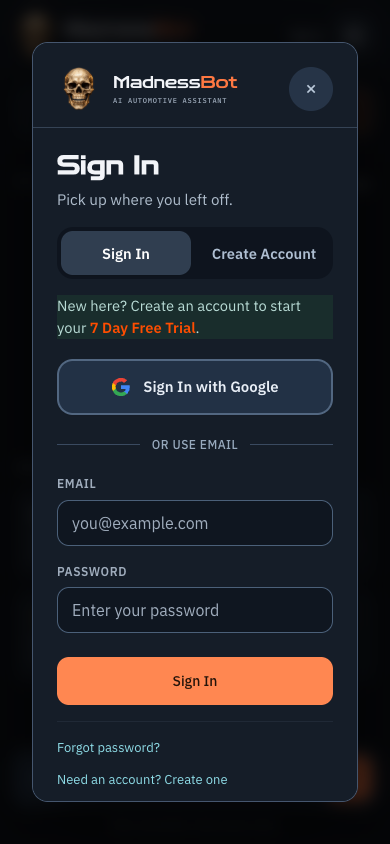
Go straight to your account.Use the email/password form or the Google option offered by your environment. These are the real browser controls; no customer credentials are pictured.
### Email and password
Open **Sign In** and use the email/password panel. Use the account associated with the environment you opened. A staging account and a production account are separate even when the screens look similar.
If account creation is enabled, choose the registration option in the sign-in panel and follow the displayed requirements. Complete email verification when requested: open the link in your email, then use the confirmation button on that page. After verifying, return to the app and sign in again if the screen asks you to.
### Google sign-in
Choose the Google option when it is available. Select the intended Google account, particularly on a shared computer or a phone with multiple accounts. The app's Google sign-in depends on the environment being configured for it; a visible test screen does not guarantee that public Google registration is enabled.
### Forgot your password?
Use **Forgot password?** in the email sign-in panel and enter your account email. Follow the reset link sent to that address and enter the new password twice on the reset page. Check junk or spam if necessary. After a successful reset, sign in again; older signed-in sessions may no longer be valid. Password-reset and verification emails can be restricted in staging; contact the team if your test account cannot receive them.
A Google-only account may need the Google route rather than a password you have never set. Do not assume that creating another account will restore an existing account's saved chats or plan.
### Sign out on shared devices
Use the account's **Sign Out** control when you finish on a shared device. End Live and close the camera first. Do not share your login, verification code, reset link, or card information in a chat or support screenshot.
## 4. Give Madness a useful starting point
The best questions give Madness facts it can reason about and make clear what you want next. You can use ordinary shop language; you do not need to know the answer before asking.
### A vehicle brief you can reuse
> Vehicle: [year, make, model, engine, transmission, mileage].
> Concern: [what happens, and what normal behavior would be].
> Conditions: [cold/hot, idle/load, speed, weather, intermittent/constant].
> Evidence: [exact codes, warning lights, readings with units, photo or clip].
> History: [recent repairs, modifications, maintenance, when it began].
> Already checked: [test and actual result—not just "checked okay"].
> Available equipment: [scan tool, meter, hand tools, service information].
> Help wanted: [first check, explanation, test plan, tool list, parts research, or repair scope].
Include the relevant engine or trim detail before asking for fitment or specifications. If you do not know it, say so. A VIN can help identify a vehicle, but avoid including unrelated customer information.
### Observations beat conclusions
Instead of “the alternator is bad,” try “the battery warning light comes on intermittently; here are the readings and conditions.” Instead of “it needs a sensor,” give the exact fault code, symptoms, and test results. This helps separate a suspected part from a confirmed problem.
Keep units with readings. Identify what you measured, where, and under which conditions. If you are copying scan data, include the label and whether the engine was cold, warm, idling, or under load. Do not invent a measurement to fill a blank.
### Ask for the answer format you need
- “Give me one next step, then wait for my result.”
- “Separate observations, likely causes, and what would confirm each one.”
- “Make a short checklist I can read on my phone.”
- “Explain why that test comes before replacing the part.”
- “Use a table: check, required tool, result to record, next decision.”
- “Explain this as if I'm learning the system for the first time.”
- “I know the basics. Focus on what would distinguish these two possibilities.”
- “Summarize this for the customer without technical jargon.”
## 5. Work through a repair in Chat
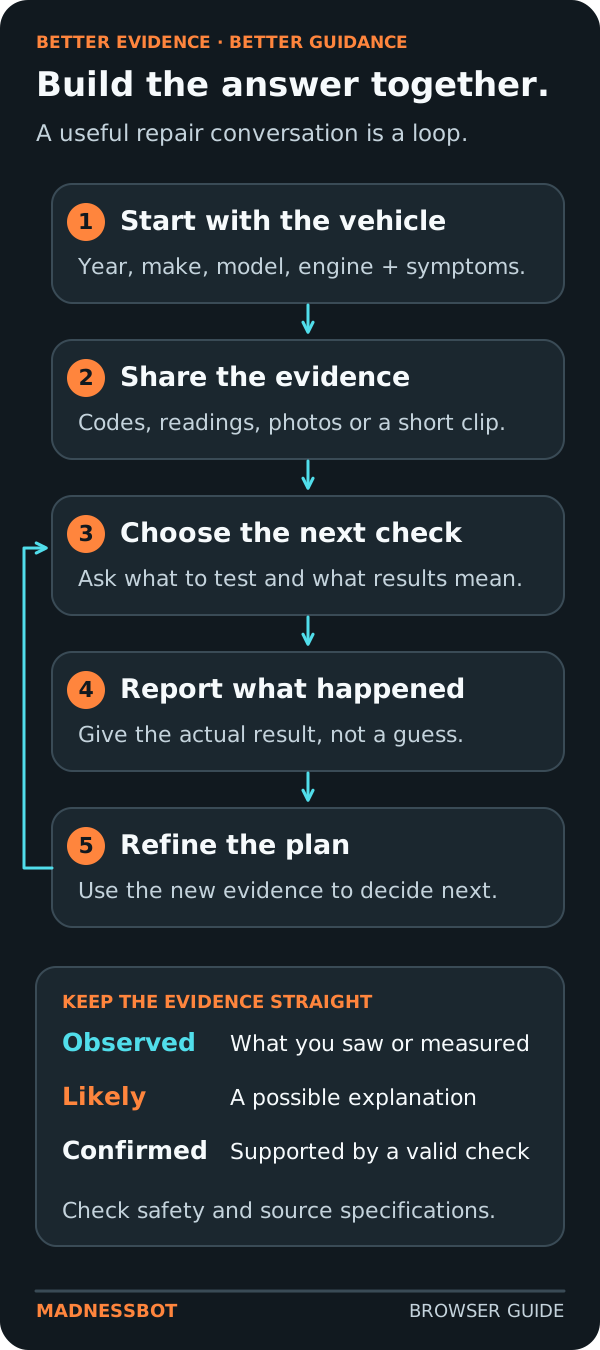
A useful answer leads to a useful check.Start with observations, report what a valid check actually showed, and refine the next step. Keep a likely explanation separate from a confirmed finding.
### Ask, check, report, refine
1. Describe the concern and vehicle.
2. Read the proposed approach, including its assumptions and missing details.
3. Perform only a check you can do safely with appropriate equipment and reliable instructions.
4. Return with the actual result.
5. Ask how that result changes the next step.
Keep one repair in one conversation when practical. If you switch to a different vehicle or an unrelated job, use **New Chat**. If you are intentionally discussing two vehicles together, identify which one each new result belongs to.
### Correct the record
Madness can misunderstand or make an incorrect assumption. Correct it directly:
> Correction: this is the 2.0-liter engine, not the 2.5. Please reconsider the last answer using that detail.
Or:
> That reading was taken with the connector unplugged. Does that change your interpretation?
For an answer that seems too broad, ask what missing fact would most change the diagnosis. For an answer that sounds too certain, ask what is verified and what remains a hypothesis.
### Read sources and estimates carefully
Open the source links when provided, especially for parts, service bulletins, recalls, specifications, and published procedures. Confirm that the source applies to your vehicle, market, engine, and production details. A search result about a similar model is not automatically the right procedure for yours.
Ask whether a labor figure is verified published time or a **planning estimate**. State what the job includes: one side or both, complete assembly or subcomponent, diagnosis, alignment, programming, or other related work. A planning estimate helps scope a conversation; it is not a guaranteed book time or final customer invoice.
### While an answer is arriving
Skull progress indicators may show that MadnessBot is preparing an attachment, analyzing media, researching, or writing. Leave the page open while the answer finishes. A progress label describes the stage of work; it does not confirm that a diagnosis is correct.
Avoid sending the same question repeatedly because an answer takes longer than expected. If the app offers a stop/cancel control, use it deliberately and check the visible result before sending again. A network problem or cancelled request may leave only a partial answer, so do not treat unfinished text as a complete procedure.
## 6. Talk with Madness Live
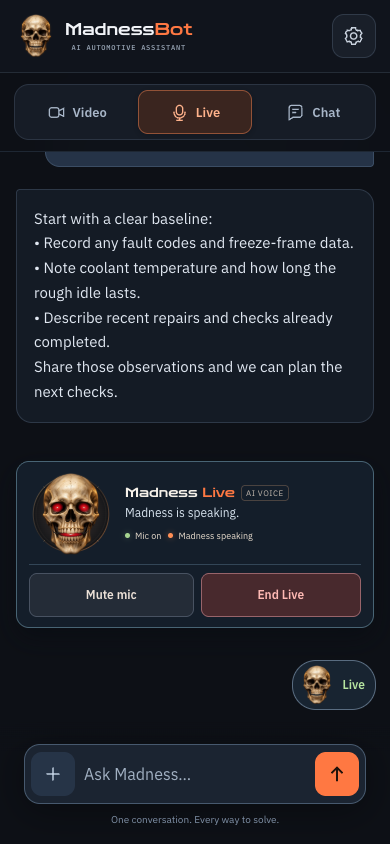
Listen to Madness. Read the details.The animated skull accompanies speech while the written answer stays in the conversation. Mute mic and End Live are different controls. This is an illustrative active-session screen, not a recording of a customer call.
Madness Live is a two-way voice conversation, not a prerecorded tour. It is useful when you want to describe symptoms aloud and discuss follow-up questions while keeping a written record of the substantial answer.
### Start a session
1. Open the existing repair conversation, or start a new one.
2. Tap **Live**, then **Go Live**.
3. Allow microphone access if the browser asks. If you previously allowed or denied it, you may not get a fresh prompt.
4. Wait for Madness to greet you first.
5. Describe the concern. Pause to let the response finish, or clarify what you meant when needed.
The skull's red eyes and small jaw movement indicate speaking activity. They are part of the interface, not a reading from the vehicle. The mic and voice status indicators help distinguish listening from playback.
### Spoken and written answers work together
Madness can speak a brief summary while the detailed response appears separately in the conversation. Read the written answer for the full sequence, qualifications, links, and measurements to record. The spoken version may be shorter; it is not a promise that every written line will be read aloud.
Try:
> Keep the spoken answer short, but put the full checklist in the conversation so I can read it.
Or:
> I just completed the first check. Here's the result. What should I do next?
### Voice controls
| Control | Use it when… |
| --- | --- |
| **Mute mic** | You want to stop transmitting your microphone temporarily. |
| **Unmute mic** | You are ready to speak again. |
| **Enable sound** | The browser needs a deliberate tap before it will play the bot's voice. |
| **End Live** | You are finished talking and want to close the voice connection. |
| **Voice transcript** | You want to review the saved spoken exchange. Use Refresh or Load more transcript where shown. |
**Mute is not End Live.** A muted session remains connected. If you are walking away, put the tools down and choose **End Live** rather than leaving the session running.
### Session length and restarting
The browser app's default maximum Live session is **10 minutes**; the service can configure this limit, so follow the session message if it differs. At the limit, the voice connection ends. You can start another session if your account still has access and available usage. There is no separate five-minute silence cutoff in this version.
Restarting does not erase the written conversation. However, a new Live session receives a limited portion of recent written context, not a complete replay of everything previously spoken. Important details mentioned only aloud may need repeating.
Before ending a long discussion, ask:
> Put a short handoff in the written conversation: vehicle, concern, checks completed, results, and the next unresolved question.
When you restart, briefly restate the important facts and correct anything missing. The voice transcript is useful to you for review; its presence does not guarantee perfect memory in the next voice session.
### Better sound in a working shop
Use a quiet position when possible. Keep the microphone clear of clothing and avoid speaking over loud equipment. If the phone's speaker keeps being heard by its own microphone, lower the volume, move to a quieter spot, or try headphones. Keep the browser page visible during use; locking the phone or switching applications can interrupt media access.
Do not hold or operate the app while driving, operating machinery, or performing a task that needs both hands and full attention.
## 7. Take and send a photo
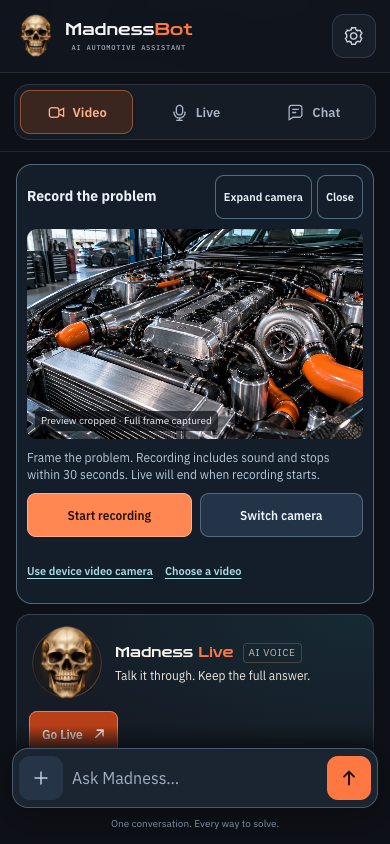
Frame the detail without leaving the conversation.The in-app viewfinder fills its box. Center the important detail; capture uses the full camera frame even when the preview crops the edges. This is the real camera interface with an illustrative image source.
A photo is useful for a label, connector, visible condition, component identification, a scan-tool display, a tool, or a readable work-order excerpt.
### Capture inside the application
1. Type any question or context in the message box first. For example: “Which connector is visible here, and what identifying detail do you need?”
2. Tap **Video → Take photo**, or **+ → Take photo**.
3. Allow camera access when prompted.
4. Center the subject. Use **Switch camera** if you need the other camera, or expand the panel for a larger view.
5. Tap **Take photo**.
6. Review the image. Choose **Retake** if it is unclear, or **Done** to send it.
**Done sends immediately.** It submits the captured image together with the text already in the composer. If you left the text empty, the app supplies a general request to analyze the photo. The large camera and preview boxes close so you have room for the response. Hiding those boxes does not discard the submitted image.
If another answer is still running, Done may be unavailable until the app is ready. Keep the capture in review and let the current request finish rather than repeatedly tapping.
### Select an existing photo instead
Choose **+ → Choose photo** and select a file. This path attaches it for review. Add your explanation, then tap **Send** or the displayed **Analyze attachment** control. Unlike the in-app camera's Done button, choosing a file does not itself submit it.
The **×** on a selected attachment removes that pending attachment. It does not delete the original photo from your phone. Submit one photo or one video per message; send additional views in follow-up messages in the same conversation.
### Make the image useful
- Include a wider view for location, followed by a close-up when needed.
- Provide enough light and hold the camera steady. Avoid glare over labels or displays.
- Make text readable and include the entire code or part marking.
- Explain what you want examined. “Look at the connector lock” is more useful than an unexplained photo.
- Remove or cover unrelated customer names, addresses, and other sensitive details.
The viewfinder fills its box and may crop outer edges of the preview. **Capture uses the full camera frame**, rather than only that cropped preview. The image may still be resized or compressed for analysis. Keep the important subject centered, and review the capture before sending. A photo can show appearance; it cannot establish an unseen internal condition, an exact dimension without a scale, or an electrical measurement that was never taken.
## 8. Record and analyze Madness Video
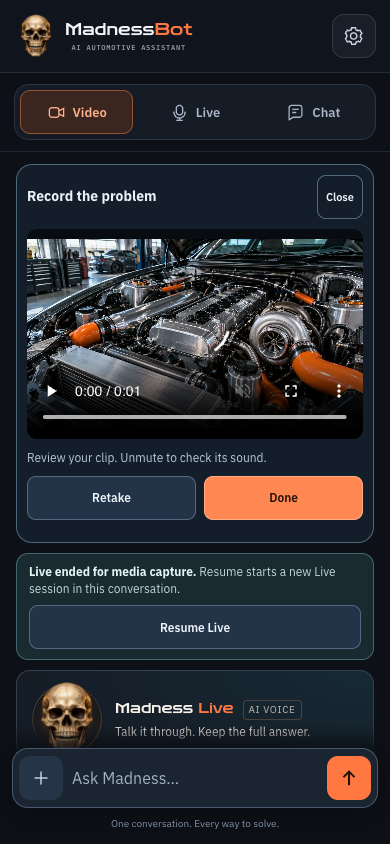
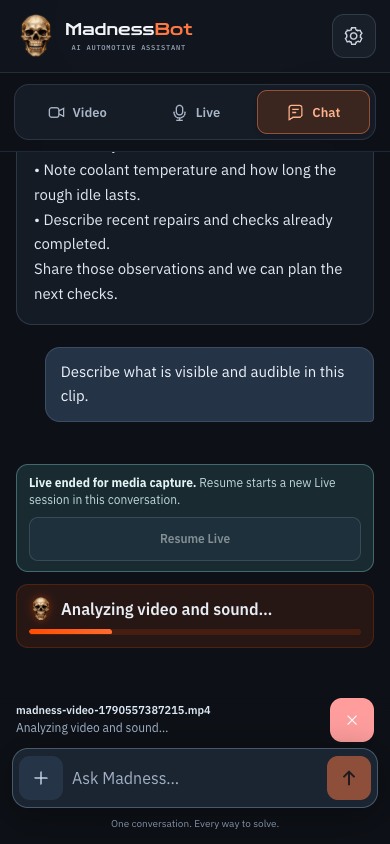
Review it. Retake or Done.Check the clip before sending. Done submits it with the message you already typed, without another Send tap. Example capture shown.More room for the answer.After Done, the large preview clears. Compact skull progress indicators stay visible. Resume Live remains available after processing finishes. Example analysis state shown.
Two ways to add media. Two final actions.The in-app camera uses Done to capture and send in one flow. Selecting an existing file attaches it first; add your explanation and choose Send.
Use video when motion, a changing display, a sequence, or recorded sound adds something that one photo cannot show. Madness Video analyzes a submitted clip; it is not continuously watching the live camera preview.
### Record a clip inside the app
1. In the existing conversation, type what you want Madness to notice before recording. Include the operating conditions and any relevant safety information.
2. Choose **Video → Record a video**, or **+ → Record video**.
3. Allow camera access if requested, then frame the subject. Keep the important detail near the center.
4. Tap **Start recording**. Allow microphone access if the browser asks for it at this point.
5. Tap **Stop recording** when you have captured it. The recorder also has a 30-second limit.
6. Review the clip. Playback starts muted; unmute the review player when you want to check the recorded sound.
7. Choose **Retake** or **Done**.
**Done uploads and sends the clip for analysis in one action.** It includes the text already in your message box. If there is no text, the app asks for a general review of what is visible and audible. You do not press the Send arrow a second time.
The large preview disappears after Done. Compact upload and analysis progress remains, followed by the written answer. This gives the answer more room on a phone while keeping the recording available to the analysis process.
### Recording during Live
Recording video ends an active Live session so the bot's voice does not talk over the vehicle's sound in the recording. Afterward, **Resume Live** offers a new Live session in the same conversation. It may be disabled while the video answer is still being processed; wait for that work to finish.
Resume is deliberate. The app does not silently restart your microphone after a recording. A new session has the context limits described in the Live chapter.
### Choose a saved clip
Use **Choose video**, select the clip, add your question, and tap **Send** or **Analyze attachment**. File selection alone does not submit it. If the embedded recorder is unavailable, the panel may offer the device's camera or a file-picker alternative. The device-camera alternative can open the phone's own full-screen capture interface.
### Clip limits
| Item | Current browser-app limit or behavior |
| --- | --- |
| Duration | **30 seconds or less**. |
| File size | **100 MB shown in the interface**; the server limit is 100 MiB. |
| Common formats | MP4, MOV, or WebM, provided the file's codecs and timing can be decoded. |
| Attachments | One video or one image per message. |
| Visual analysis | Sampled frames, approximately every two seconds, with a maximum of 15 frames. |
| Sound | Analyzed when the clip has a usable audio track. Recognized speech and other sounds are separate evidence. |
| Temporary upload | Can expire; the default is about one hour. Upload it again if the app says it is unavailable or expired. |
A short clip containing the relevant event is often more useful than a longer recording of unrelated activity. If a very brief event matters, describe its time in the clip and consider adding a still image. Frame sampling can miss events between the sampled images.
The conversation may include **Recorded speech (automatic transcript; may contain errors)** and **Other sounds (automatic observations)**. These describe the uploaded clip and help you check what the analysis used. They are separate from **Voice transcript**, which records the Madness Live conversation. Correct misheard words and treat uncertain sound observations as uncertain.
### Questions to send with a clip
> This is a cold start, recorded from beside the vehicle with the phone kept clear of moving parts. Describe what you can actually see and hear, and separate that from anything you cannot confirm.
> The issue appears about four seconds into the clip. Compare the sampled views and tell me what additional still image or measurement would help.
> Please transcribe the words in this recording separately from any observations about the other sounds.
> The rattle changes when the operating condition changes. Tell me whether that change is clear in the clip, and what information would be needed before drawing a conclusion.
Noise, wind, automatic microphone processing, and distance can obscure a sound. A transcript can be useful even when the source of a mechanical noise is uncertain. The app should not treat a sound match as a confirmed failed component. Uploading a video is also different from generating a new video: **video generation is not part of this product offering**.
## 9. Save, reopen, and organize conversations
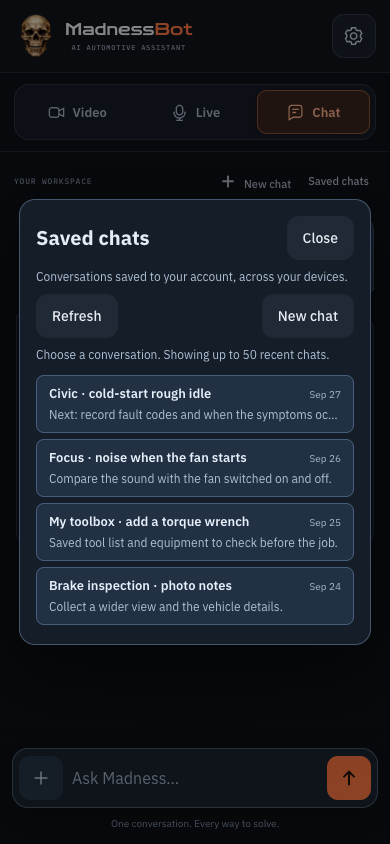
Recognize the job at a glance.Saved Chats uses compact topic labels, a short preview, and a date. Opening a row restores that conversation. These are sample repair conversations.
### Saved Chats
Open **Saved Chats** to see recent conversations. The list uses compact rows: a meaningful topic, a short preview when available, and a date. An automatic opening “Hi” is skipped when a more useful topic exists. Greeting-only or voice-only conversations may still have a general label until there is a recognizable topic.
Select a row to reopen that conversation. Use **Refresh** when looking for recent activity. The list shows up to 50 recent conversations; it is not a promise that every conversation is shown at once.
Use the same account and the same environment to retrieve a conversation on another device. Changes may require Refresh; this is not simultaneous live synchronization between every open phone and browser tab. Avoid working on the same conversation from multiple devices at the same time.
### New Chat
Choose **New Chat** when you want a clean start. Madness gives a short welcome and leaves Chat ready for your new question. That initial welcome is local interface text; it does not submit an automatic diagnostic request or use a query by itself. Your previous saved conversation remains available.
Starting or opening another conversation may be blocked while a draft, pending attachment, active camera, or request needs attention. Finish, send, or deliberately clear that work first. Do not refresh just to bypass the guard if you need to preserve an unsent message or capture.
### Keep a useful repair record
At a stopping point, ask for a concise handoff:
> Summarize this job with the vehicle, customer concern, observations, completed checks and their results, unresolved possibilities, and the next agreed step. Do not add work we have not done.
Review and correct the summary. Keep any business-critical record in your normal shop recordkeeping system too. Saved conversation text is not a guarantee that a temporary uploaded-video file or every external link remains available indefinitely.
## 10. Diagnostic examples: follow the evidence
These are **fictional teaching conversations** showing how to use the app. The sample responses illustrate useful structure, not actual test results or repair instructions for your vehicle. Add your real vehicle details and use verified vehicle-specific procedures before carrying out work.
### Example A: a rough idle and a fault code
**You:**
> I have a rough idle and a stored fault code. I'll give you the exact vehicle and code. Before recommending a part, help me organize the information that would distinguish the likely causes.
**Illustrative Madness response:**
> Let's make the evidence earn its keep. Start with the exact vehicle, code, and whether the roughness is cold, warm, or constant. Add any freeze-frame information and recent work. I'll separate the observed fault from possible causes and build the next check around the information you can actually obtain.
**Your follow-up:**
> It began immediately after the recent work. Here are the before-and-after observations. Which assumption in the earlier list should change?
**Why this works:** you provide timing and observations instead of treating a code as an instruction to buy a part. Ask for one step at a time if you want a shorter response on your phone.
### Example B: “won't start” needs a clearer description
**You:**
> The customer says it won't start. Help me separate what I need to ask them from what I need to verify on the vehicle.
**Illustrative Madness response:**
> First, clarify what happens during the start attempt: does the engine turn over, is there a click, or is there no response? Then add the warning messages, when it last ran, and any recent changes. Those descriptions lead to different paths; “won't start” alone is too broad to choose a replacement part.
**Your follow-up:**
> Here is the exact behavior and a short clip. Please describe the evidence before proposing the next check.
**Why this works:** you turn an ambiguous complaint into a usable observation. The clip supports the conversation; it does not replace the measurements needed to confirm the cause.
### Example C: an intermittent noise
**You:**
> The noise is intermittent. I recorded a short clip and noted the conditions. Tell me what is audible, what is unclear, and what additional evidence would distinguish the possibilities.
**Illustrative Madness response:**
> I can help compare the recording with your description, but I won't call a component failed from a sound alone. Tell me when the noise starts and stops and whether the phone's position changed. If the recording does not distinguish the source, the next step is better evidence—not a confident guess.
**Your follow-up:**
> The sound is near the end. Here is a still image showing the recording position and a written description of the change.
**Why this works:** audio, images, and operating conditions stay separate and can support each other. Do not move a phone or your hands into moving machinery to obtain a better recording.
### Example D: electrical information that is incomplete
**You:**
> I have a connector photo and a measurement, but I have not verified the connector identification. What information is missing before the reading means anything?
**Illustrative Madness response:**
> We need the correct vehicle and connector reference, the measurement units, where the probes were placed, and the operating condition. A similar-looking connector or a generated diagram is not enough to establish a pin assignment. Let's identify the correct source before deciding what the result proves.
**Your follow-up:**
> I found the matching manufacturer reference. Here are the verified identification and my measurement conditions. Help me compare the result with that source.
**Why this works:** the conversation can interpret supplied evidence without inventing safety-critical wiring details. High-voltage, airbag, and other hazardous systems require the appropriate qualified procedures and equipment.
### Example E: an unclear photo
**You:**
> Can you identify this component and tell me whether you can read the marking?
**Illustrative Madness response:**
> I can describe the visible shape and surroundings, but the marking is not clear enough to confirm an exact part. A wider location photo and a sharper label photo would help. I won't turn a blurry number into a confident fitment recommendation.
**Your follow-up:**
> Here is the label close-up. Compare the candidates and flag anything still uncertain.
**Why this works:** you ask the app to distinguish appearance from confirmed identification, and you supply the missing view in the same conversation.
### Example F: close out the job
**You:**
> Here are the findings, repair performed, and verification results. Write a short repair summary and a separate explanation for the customer. Don't claim any checks that aren't listed.
**Illustrative Madness response:**
> I'll separate the original concern, the evidence that supported the repair, the work you reported completing, and the verification you supplied. I'll also list any unresolved concern separately so it doesn't disappear in a tidy-looking summary.
**Why this works:** the final explanation is based on your reported work rather than an invented successful repair. You remain responsible for the actual inspection, work, and release decision.
## 11. Research parts and plan a job
MadnessBot can help research parts, tools, and suppliers, compare options, and organize a parts-and-labor discussion. Ask for source links and distinguish current seller information from assumptions.
### A strong parts request
> For [exact vehicle details], research options for [part or assembly]. Separate OEM and aftermarket choices, list the source links, and identify the fitment details I must confirm before ordering. Include condition, shipping, and core-charge considerations if the source provides them. Do not buy anything.
**A useful response should include:** clearly identified candidates, the basis for fitment, available source information, and unanswered questions. If a price or stock status cannot be verified, it should say so.
Follow up with:
> Compare these two listings on the things that matter for this job. Which facts are confirmed by the listing and which should I ask the seller?
MadnessBot researches; it does not reserve stock, place orders, guarantee the lowest price, or verify every supplier's live inventory. Confirm fitment and the final purchase terms directly with the seller.
### Research service bulletins and recalls
> For [exact year, make, model, engine, market, and symptom], look for relevant service bulletins or recalls. Link the original sources, explain their scope, and list the vehicle or VIN details I must verify before deciding that any of them applies.
A service bulletin is not automatically a recall, and a similar symptom does not establish that either applies to your vehicle. Verify current recall applicability through the manufacturer's or relevant official recall service, using the required vehicle details. Research can guide your next question; it does not establish warranty coverage or replace the actual diagnostic procedure.
### Plan the complete scope
> Help me build a planning estimate for [job]. Separate diagnosis, parts, labor, related operations, and unknowns. State whether the labor figures are verified book time or a planning estimate. My shop labor rate is [rate]; do not assume a rate for me.
Check whether the estimate includes both sides, alignment, calibration, programming, fluids, shop supplies, taxes, and other work relevant to the actual job. The app is not a complete invoicing, payment, or repair-order system.
### Work-order photos
You can supply a readable image of the relevant work-order text and ask for a summary, clarification questions, or a diagnostic plan. Remove unrelated customer details first. Ask Madness to confirm unreadable text rather than guess it. A photographed work order is an image input, not an automatic import into your shop-management system.
## 12. Build and use your toolbox inventory
Your saved toolbox is managed **through the conversation**. There is no separate Toolbox tab to find in this browser layout.
### Show what is saved
> Show my saved toolbox, grouped by tool type. Include quantities and notes.
### Add tools deliberately
> Add one 3/8-inch-drive metric shallow socket set to my toolbox. Note that it is my travel set.
Or:
> I own the tools in this list. Add them to my toolbox with the quantities shown, and tell me exactly what was saved.
Include drive size, measurement system, depth, range, adapters, and other details that matter. “Socket set” may not be enough to determine whether it fits a job's requirements.
### Update or remove an item
> Update the quantity of [exact saved tool] to two, and add this note: [note].
> Remove [exact item] from my saved toolbox. I no longer own it.
Read the confirmation. If the tool name is ambiguous, clarify which item you mean. A discussion about a tool or a photo identifying one does not by itself mean you own it or want it saved.
### Compare a job with your tools
> For the job we just discussed, make a required-tools list and compare it with my saved toolbox. Separate what I have from what is missing. Don't add the missing tools to inventory.
Then:
> Help me prioritize the missing items by immediate need, alternatives, and future usefulness. Ask for my budget instead of assuming it.
**Illustrative Madness response:**
> I'll compare the exact sizes and capabilities, not just whether your list contains something called a wrench. Missing items stay on a shopping list unless you tell me you acquired them and want them saved.
The inventory reflects recorded information, not a live scan of your physical toolbox. Keep it accurate as tools are acquired, moved, replaced, or sold. Tool planning may help you avoid unnecessary purchases, but no particular savings or career outcome is guaranteed.
## 13. Create images and explanatory visuals
When your plan includes image generation, ask in Chat for the image you want. Describe its purpose, subject, and level of detail. Use language that clearly requests a **new generated image** if that is your intent.
Examples:
> Create a simple educational illustration showing the general relationship between a battery, a load, and a switch. Label it as a conceptual illustration, not a vehicle-specific wiring diagram.
> Create a garage poster concept featuring a fictional drift car in our orange-and-black color scheme.
> Make a simplified illustration to explain the concept we just discussed to a customer. Avoid presenting it as a photograph of their vehicle.
If you want an existing reference instead, say:
> Find an existing manufacturer reference for this exact application. Do not substitute a generated diagram.
Generated images can contain mistakes in text, proportions, labels, routing, and technical details. An illustration is not an OEM wiring diagram or proof of a correct pinout, fastener specification, or repair procedure. Verify technical details against appropriate authoritative information.
You can also request **tables, checklists, and comparisons** in ordinary answers. These are useful for organizing tests, estimates, or parts choices. Do not assume a generated chart represents measured data unless you supplied or verified the underlying values.
## 14. Maintenance, learning, racing, and shop work
### Maintenance planning
Provide the exact vehicle, mileage, service history, use, and region where relevant. Ask for a maintenance discussion tied to the correct service information:
> Help me organize a maintenance plan. Separate manufacturer-specified items from general inspection suggestions, and link the applicable sources. Flag anything that depends on a severe-service schedule.
Do not treat a generic interval as your vehicle's requirement. Missing service history is a question to resolve, not evidence that work was or was not done.
### Learn while you diagnose
> Explain the system first, then show how the symptom relates to it. Tell me what evidence would support or contradict your explanation.
> Quiz me on the reasoning behind this diagnostic sequence, then explain anything I miss.
> Translate this technical explanation into plain language for a customer while preserving the uncertainty.
Use Madness as an aid to learning and preparation. It is not a certification program, instructor sign-off, or substitute for supervised training where required.
### Racing and modified vehicles
Explain the vehicle's modifications, intended use, event conditions, current setup, driver observations, and relevant measurements. Modified vehicles need more context than an unqualified year/make/model lookup.
> Organize this post-session debrief. Separate driver feedback, measurements, proposed changes, and the information needed before choosing a change. Keep track of what we change one item at a time.
> Help me build a preparation checklist for this event from the rules and vehicle information I provide. Flag anything that needs confirmation from the current official rules.
MadnessBot is not live telemetry, an autonomous tuner, or a sanctioning-body approval service. Do not use a general answer as approval for a modification or for operation of a safety-critical system.
### Other equipment
You can describe trucks, motorcycles, boats, and other mechanical equipment in the conversation. Supply the equipment identity and context rather than expecting automotive assumptions to transfer. Availability and completeness of reliable information vary; this is not a guarantee of coverage for every machine or a replacement for regulated maintenance requirements.
### Shop Growth Reports
Paid **Pro and Enterprise** accounts can request a Shop Growth Report in the conversation, with a separate allowance of **three reports per month**. Trial and DIY accounts do not include this report benefit. Explain the shop, location, specialties, audience, goals, and website or other public information you want considered. Request the report explicitly, rather than assuming a casual marketing question starts one.
> Please create a Shop Growth Report for my shop. Here are the shop name, location, website, main services, and the business goals I'd like the report to address.
The report is delivered as a **PDF to the account email**, so check the address and the relevant inbox. Generation and delivery can take time; the chat's acknowledgement is not the finished report. The report is research and planning assistance; it does not automatically publish marketing, contact prospects, change your website, or promise business results. Email delivery can be restricted in staging.
## 15. Plans, usage, and billing
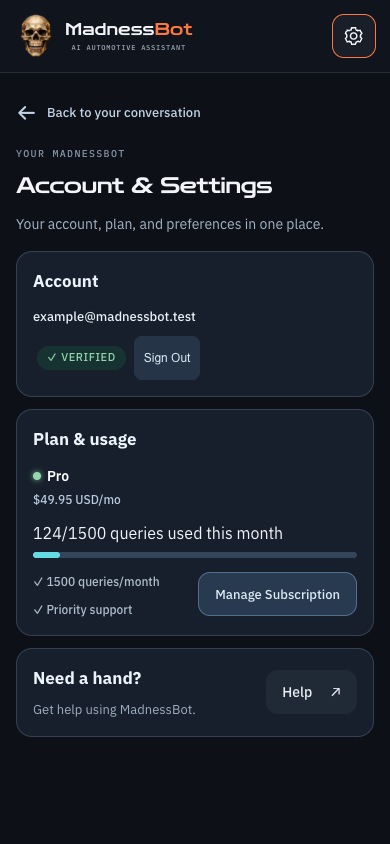
Your account, out of the workspace.The gear opens plan and usage details, account controls, billing options, and Help. Back returns to the conversation. The account, usage, and plan state pictured here are illustrative.
Open the **gear → Account & Settings** to check your plan and usage. Use the displayed account information and checkout terms as the authority for your subscription.
| Plan | Advertised offering |
| --- | --- |
| **Free Trial** | Seven days or 100 queries, whichever comes first, with no credit card required for the trial; includes Madness Live and Madness Video. |
| **DIY** | $19.95 USD/month; 500 queries per month, with text guidance, parts research, and toolbox features. |
| **Pro** | $49.95 USD/month; 1,500 queries per month, Madness Live, Madness Video, eligible image features, and three Shop Growth Reports per month. |
| **Enterprise** | $199.95 USD/month, advertised for shops and fleets with five seats and Pro features. Confirm seat arrangements and additional requirements with the team. |
Prices and offers can change. Existing subscriptions may have different terms. Taxes, final charges, available billing options, and any changes are shown in the applicable account and payment flow.
**Madness Live and Madness Video are included in the Free Trial and all Pro and Enterprise accounts.** They are not advertised as DIY benefits. Enterprise seat setup and any shared administration or integration arrangements should be confirmed with the team; this manual does not promise a self-service seat-management screen.
### Understand the allowance
The trial is limited by both its time period and total query allowance. Paid query allowances use calendar months in the current system. A monthly query allowance and the subscription's payment-renewal date are different concepts; check the displayed dates and account details rather than assuming they are identical.
Do not assume every spoken sentence, generated image, or operation is charged in exactly the same way. Live access and usage can have additional limits. Check the app's account display and any limit message. If an allowance seems incorrect, contact support with the time and operation involved rather than repeatedly retrying.
Simply reading saved answers, changing tabs, or receiving the local New Chat welcome does not submit another diagnostic question. A new paid plan is a separate checkout decision; the no-card trial does not automatically enroll you in a paid subscription.
### Upgrade, payment details, and cancellation
Use **Upgrade Plan** to see available plans. For an existing paid subscription, use **Manage Subscription** where offered to open the hosted billing flow. Review the displayed plan, amount, and terms before confirming a change. Enter card details only in that payment flow, never in the diagnostic conversation.
Where **Cancel Subscription** is available, read its confirmation carefully. A valid paid subscription can be scheduled to end at the close of its current billing period. Cancellation is not a promise of an immediate refund, a fresh trial, or a particular proration adjustment. Confirm the resulting status in your account.
**Staging reminder:** billing is in test mode and accounts are separate. Do not enter real payment details while testing. A staging subscription or successful test checkout does not change a production subscription.
## 16. Permissions, privacy, and working safely
### Camera and microphone access
The browser asks for permission when a requested feature needs it. Choosing a tab alone does not grant access. Close the camera panel when you finish capturing; choose End Live when you finish talking. Opening settings closes the camera. A browser's camera or microphone indicator can help you check whether that device is in use.
Allow the correct website in the browser's site-permission controls and, where necessary, the device's application permissions. Menu names vary between browsers and operating-system versions. If you denied a request earlier, change the saved permission rather than waiting for a prompt that may not appear again.
Use a secure connection and a supported, current browser. Corporate device policies, another application using the camera, a blocked microphone, or switching away from the browser can prevent capture or Live from working.
### What you send
Questions and selected media are sent to the service and AI providers for processing; the app is not an entirely offline or on-device diagnostic tool. Saved conversations and inventory are account features. Technical troubleshooting data can also be recorded.
Only include information relevant to the job. Avoid customer contact information, payment details, passwords, and unrelated material visible in the camera frame. Check your shop's policies and permissions before uploading customer documents or recordings. Refer to the [Privacy Policy](/privacy) and [Terms](/terms) for the applicable service terms; contact the team for a question those policies do not answer.
### Use guidance as part of a safe process
MadnessBot cannot physically inspect, support, isolate, or test the vehicle. It can help reason about the information you provide. The technician must verify the facts, use appropriate equipment, follow applicable manufacturer procedures, and confirm the repair result.
Keep the phone and your hands clear of hot, rotating, energized, pressurized, or moving equipment. Never obtain a recording at the expense of safe positioning. Lifting/support, braking/steering, fuel systems, high voltage, airbags, and other hazardous work need the correct procedures and qualifications. If the task exceeds your equipment or training, stop and obtain the right assistance.
Do not act on an unverified safety-critical specification. Ask for the exact source and application, and stop if that information is missing or contradictory.
## 17. Troubleshooting
### I cannot sign in
Check that you opened the intended production or staging app, selected the correct Google account or email, and used the corresponding credentials. Use password recovery for an email/password account. Complete verification when requested. A staging access restriction may require help from the MadnessBot team; creating another account is not a reliable workaround.
### Live does not connect
Read the message beneath the Live controls. Check your sign-in, plan access, remaining allowance, connection, and microphone permission. If the browser needs a tap to permit playback, use **Enable sound**. End an unsuccessful session before deliberately trying again. If repeated attempts fail, note the approximate time and the exact visible message for support.
### I hear nothing, but the skull appears to be speaking
Use Enable sound if shown, check volume and the selected audio output, and look for Bluetooth headphones or another output device taking the audio. Confirm that the website is not muted. Keep the page visible. If needed, end Live and reconnect once after checking these settings.
### The voice breaks up or interrupts itself
Try a steadier connection and a quieter position. Reduce loud speaker-to-microphone feedback or try headphones. Avoid running multiple voice sessions in different tabs. Note the browser, phone model, speaker/headphone use, and time if it repeats; a successful connection does not prove that playback was smooth.
### The camera is blank or permission was denied
Check the browser's permission for this site and the device permission for the browser. Close another application using the camera and try the camera control again. Use **Switch camera** if the wrong lens is selected. If embedded capture is not supported, use the offered device-camera or choose-file alternative.
### A photo will not open or decode
Try a clear JPEG or PNG that opens correctly in your browser. WebP is also supported when it can be decoded. HEIC support depends on the browser and device; convert or export it to JPEG if necessary. A renamed extension does not convert the file. If the image is large, try a smaller exported copy while keeping labels readable.
### The preview is cropped
The live viewfinder fills its box from left to right. Outer edges can be cropped in the preview, while the full capture is retained. Center the important detail and review the capture before Done. Expand the panel if you need a larger view.
### Done is disabled
The app may still be recording, preparing the capture, or processing another answer. Stop recording and wait for a valid review. If another answer is running, let it settle. The capture should remain in review until the app is ready to submit; do not close it unless you intend to discard the unsent capture.
### I tapped Done and the picture disappeared
That is the intended compact flow. Done submits the capture, hides the large preview, and leaves progress and the written answer visible. You do not need another Send tap. If a failure message appears, follow that message; disappearing preview boxes alone are not evidence of a successful analysis.
### A video will not upload
Check duration, size, and format. The full app accepts up to 30 seconds and 100 MB as shown in the UI. A supported filename extension does not guarantee that every codec or damaged recording can be decoded. Try a shorter standard clip or a newly recorded clip. A busy-processing message can mean temporary capacity is full; wait before retrying rather than repeatedly submitting.
### Upload succeeded, but analysis failed
Uploading the file and generating its answer are separate stages. If analysis fails after a successful upload, retain the original clip and follow the error message. A completed upload alone does not mean the recording has been analyzed.
When the message says the audio analysis could not be confirmed or the upload expired, **select or record the clip again as a fresh upload**. Pressing Send repeatedly on the same failed upload may not restart that audio analysis. Include the approximate failure time when contacting support.
### The clip's words or sounds were misunderstood
Separate the problem: were the spoken words misrecognized, or was the source of another sound uncertain? Correct the words explicitly in Chat. For other sounds, explain the recording conditions and what you personally observed. Upload a clearer short clip if necessary. Do not treat a confident-sounding guess as a verified acoustic diagnosis.
### Resume Live is visible but unavailable
The app may still be sending or analyzing the recording, or your account or microphone may need attention. Wait for the current answer, check the visible status, then use Resume Live. It starts a new voice session; it does not continue an uninterrupted recording session in the background.
### A saved chat has a vague title, or I cannot find one
Greeting-only or incomplete conversations can have general labels. Use Saved Chats → Refresh and check that you are in the correct account and environment. The recent list is limited. A draft, attachment, open camera, or active request can also prevent opening a different conversation until you finish or clear that work.
### New Chat will not open
Look for unfinished work in the current conversation. Send or clear the draft, finish or remove the selected attachment, close the camera, and wait for or deliberately stop the active request. Then choose New Chat again. It should show a fresh Madness welcome and the Chat composer—not require you to create a new account.
### My allowance or billing looks wrong
Open Account & Settings and review the displayed plan and dates. Check whether you are looking at staging test data or the production account. For a billing question, use the account's billing controls or contact support. Do not send card numbers or a payment screenshot containing sensitive information in the diagnostic chat.
### An answer, link, or specification looks wrong
Stop before using questionable information. Explain the mismatch and ask for the supporting source and the exact application. Open the source yourself when necessary. If a link is unavailable, ask for a current source or a clearly labeled alternative; do not assume that an unavailable reference proves the claim.
## 18. Questions worth trying
Replace the bracketed details with your own. These are starting points, not special commands.
### Diagnosis and follow-up
- “For [vehicle], here are the exact symptoms and codes. What missing fact would change the first diagnostic step?”
- “Give me the next useful check only, and explain what each possible result would tell us.”
- “Here is the result from your previous suggestion. Update the plan rather than repeating the whole original list.”
- “List the assumptions in your answer and tell me which are still unverified.”
- “What evidence would rule out the leading explanation?”
- “Summarize what we have confirmed and what remains a hypothesis.”
### Photos and video
- “Identify what is visible in this photo and state how certain you are.”
- “Can you read this label? Mark any character you cannot read rather than guessing.”
- “Compare this new photo with the previous one and describe only visible differences.”
- “Separate the recorded speech from your observations about other sounds.”
- “The event happens near [time]. What additional view would make it clearer?”
- “What cannot be determined from this clip alone?”
### Parts, tools, and estimates
- “Compare these part candidates and show the exact fitment details still needing verification.”
- “Build a parts list from the repair scope we agreed on. Separate required parts from optional related work.”
- “Give a planning estimate with assumptions and exclusions; do not call it verified book time.”
- “Show my toolbox and group similar tools together.”
- “Compare this job's required tools against my saved inventory without changing it.”
- “I have now purchased [tool]. Add it with [quantity and notes] and confirm the saved result.”
### Learning and communication
- “Explain this system at apprentice level, then give me a short knowledge check.”
- “Explain why this test is more informative than replacing the suspected part.”
- “Rewrite the findings for the customer without promising an outcome we have not verified.”
- “Create a concise technician handoff for the next shift.”
- “Turn the findings into a table suitable for copying into my own job notes.”
- “Create an illustrative diagram of the general concept and label it as an illustration.”
### Planning and shop work
- “Organize my maintenance history and identify missing information before suggesting a schedule.”
- “Help structure a post-track-session debrief from these observations.”
- “Make a tool purchase plan using my stated budget and the jobs I actually do.”
- “Please create a Shop Growth Report using these shop details and goals.”
## 19. Frequently asked questions
### Does MadnessBot connect directly to my vehicle?
Not through these browser controls. You provide the observations, scan-tool results, measurements, and media. The app does not physically connect to the ECU or carry out a bidirectional scan-tool test for you.
### Can I talk, type, and show evidence in one job?
Yes. Chat, Live, and Video share the current conversation. Recording video ends Live to keep the clip clean, and Resume Live starts a new session afterward. Important spoken-only details may need restating after a restart.
### Do I need to press Send after Done?
No. **Done in the in-app camera review sends automatically.** Selecting an existing file is different: review it, add context, and use Send or Analyze attachment.
### Does Madness watch the camera before I submit?
The camera panel is a viewfinder for capturing media. Madness Video analyzes a submitted clip; opening the viewfinder is not continuous live video diagnosis.
### Does it inspect every video frame?
No. It analyzes sampled frames and available audio. A very brief event can fall between samples. Explain when the event occurs and consider providing a still image too.
### Why is the spoken answer shorter than the text?
Live provides a spoken summary while the detailed answer remains in the conversation. Read the written answer for full instructions, caveats, and source links.
### Will it remember everything forever?
No. Saved history helps you resume, but model context and temporary media availability have limits. A new Live session does not automatically replay the entire spoken history. Keep important facts in a corrected written handoff and your own records.
### Can it replace all my tools or repair-information subscriptions?
It can help organize information and research next steps, parts, and tools. It does not replace physical measurements, appropriate equipment, manufacturer procedures, or professional judgment. It does not promise licensed access to every manufacturer or subscription repair database.
### Can I upload a PDF through Choose file?
The current attachment chooser accepts supported **images and videos**. “Choose file” is not a promise of arbitrary PDF, spreadsheet, or document ingestion. A readable image of relevant text can be discussed as an image.
### Is an AI-generated wiring picture a factory diagram?
No. Generated imagery is illustrative. Request and verify the correct manufacturer reference for actual circuits, pinouts, wire colors, and specifications.
### Does Madness order parts or update my toolbox automatically?
Parts research does not place an order. Toolbox changes are made when you ask to save, edit, or remove items. A discussion or photograph alone should not be treated as proof that you own the tool.
### Is the website preview the same as the full application?
No. The website previews the interface and explains MadnessBot. Free Trial and preview actions lead to the real Google/email sign-in panel. Sign in or create an account to use the application described here; guest AI demos are disabled.
### Does this manual describe the native iPhone or Android app?
It describes the current browser edition on phones and computers. Native applications can have different interfaces and release schedules.
## 20. Get help and report a problem
Open **Account & Settings → Help** to return to this manual. For a problem you cannot resolve, email [support@madnessbot.com](mailto:support@madnessbot.com).
Include:
1. Whether you used the **staging app, production app, or website**.
2. The approximate date and time, with your time zone.
3. Your device and browser, and whether Live used the speaker, headphones, or Bluetooth.
4. The feature and button involved—for example, Record video → Stop recording → Done.
5. The exact visible error, and whether upload, progress, speech, or written text had already started.
6. Whether it repeats, and a support reference if the app displays one.
7. A cropped screenshot if useful, with unrelated private information removed.
Do not send passwords, authentication codes, payment details, or an unredacted customer document. Keep the original media privately available if the issue concerns a recording; the team can tell you what is needed to investigate.
**A good problem report:** “Staging, iPhone browser, around 3:20 PM Pacific. I recorded a six-second clip, tapped Done, and saw upload progress. Analysis then stopped with this message: [exact message]. I was using the speaker, and Chat text still worked.”
**A good product question:** “I can use Chat, but I am not sure how Resume Live relates to the recording I just sent.” The more clearly you describe where you are in the workflow, the easier it is to help.
Keep the conversation practical: show the problem, talk it through, and find your next step.